



Anthropic’s Claude AI now offers three distinct modes of interaction: Chat, Cowork, and Code. Each serves a fundamentally different purpose, and understanding when to use which can dramatically improve your productivity. This guide breaks down every difference, walks you through setup and best practices, and helps you decide which mode fits your workflow.
Quick Overview: What Are Chat, Cowork, and Code?
All three modes are accessible from the Claude Desktop app as tabs at the top of the window. They share the same underlying AI models — including Claude Opus 4.6 and Claude Sonnet 4.5 — but differ in how they interact with your computer, files, and workflows.
- Chat — The classic conversational interface. You send a message, Claude responds. Best for brainstorming, writing, analysis, and quick questions.
- Cowork — An autonomous agent that reads and writes files on your computer, browses the web, and executes multi-step tasks independently. Built for knowledge workers.
- Code — A developer-focused coding agent that runs in your terminal (CLI) or the Desktop app’s Code tab. Designed for software engineering tasks like writing, debugging, and refactoring code.
Claude Chat: The Conversational Foundation
What It Does
Claude Chat is the mode most people are already familiar with. Available on the web, mobile apps, and the Desktop app’s Chat tab, it works like a traditional AI conversation: you type a prompt, Claude responds, and you continue the dialogue.
As of February 2026, Claude’s free plan includes file creation, connectors, skills, and context compaction — features that were previously reserved for paid subscribers.
Key Capabilities
- File creation — Generate Word documents, Excel spreadsheets, PowerPoint presentations, and PDFs directly from conversation
- Connectors — Connect Claude to Slack, Notion, Google Workspace, Figma, Canva, and other external services via MCP (Model Context Protocol)
- Skills — Customize Claude’s behavior with reusable instruction packages from the Skills Directory
- Web search — Access up-to-date information beyond Claude’s training data
- Image and document analysis — Upload images, PDFs, and other files for Claude to analyze
- Context compaction — Conversations automatically summarize earlier messages to continue without hitting length limits
- Interactive artifacts — Claude can create interactive apps, charts, and visualizations inline
When to Use Chat
- Brainstorming ideas and exploring concepts
- Writing and editing text (emails, reports, blog posts)
- Analyzing documents, data, or images you upload
- Quick questions that need a single, direct answer
- Creating one-off files like spreadsheets or presentations
- Learning and research — when you want to understand something, not automate it
Limitations of Chat
Chat cannot access your local filesystem — it only works with files you manually upload (limited to a handful at a time, each under 30 MB). It cannot run commands on your computer, create folders, move files, or automate multi-step workflows. If Claude suggests a folder structure, you still have to create it yourself, file by file.
Claude Cowork: The Autonomous Desktop Agent
What It Does
Claude Cowork is the newest of the three modes, launched in January 2026 as a research preview. It brings the autonomous, agentic capabilities of Claude Code to non-developers through a visual interface in the Claude Desktop app.
Think of Cowork as giving Claude direct access to a folder on your computer. Instead of just talking to you, Claude can read, create, edit, and organize files in that folder autonomously. It can also browse the web (including your logged-in sessions if you connect Chrome), run sub-agents to parallelize work, and produce polished deliverables.
Key Capabilities
- Local file access — Read, write, and organize files in folders you explicitly approve
- Sub-agent coordination — Break complex work into parallel tasks, similar to how a manager delegates to a team
- Long-running tasks — Work on complex projects for extended periods without context limits or timeouts
- Professional outputs — Generate polished Excel spreadsheets with working formulas, formatted PowerPoint decks, and structured documents
- Web browsing — Search the internet and access your logged-in sessions through Chrome integration
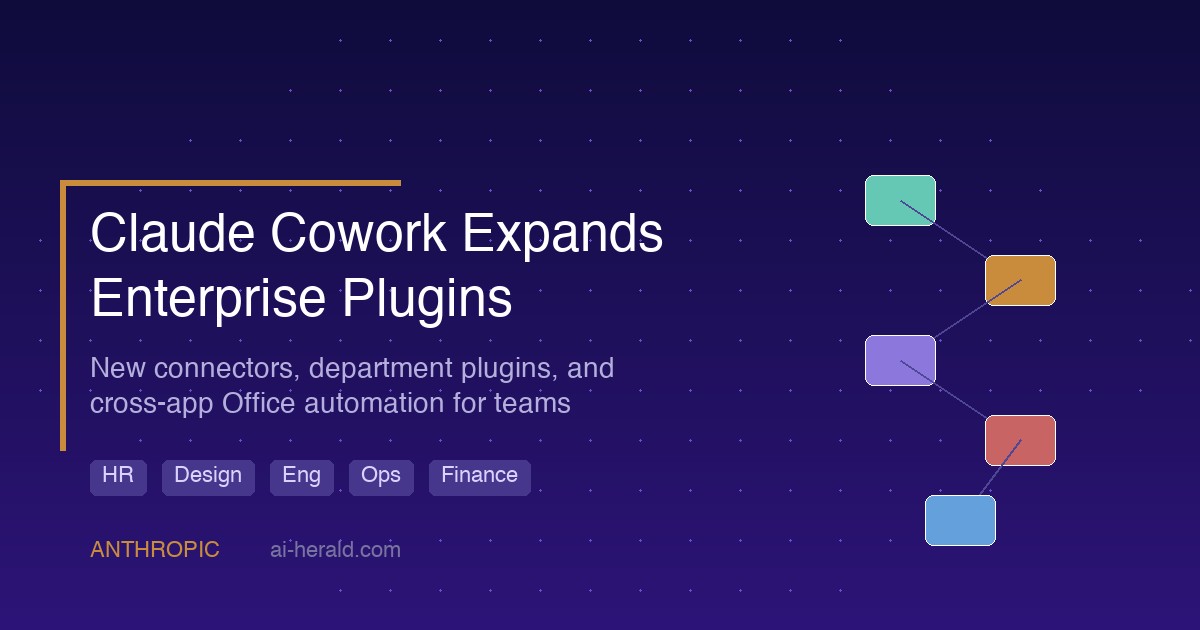
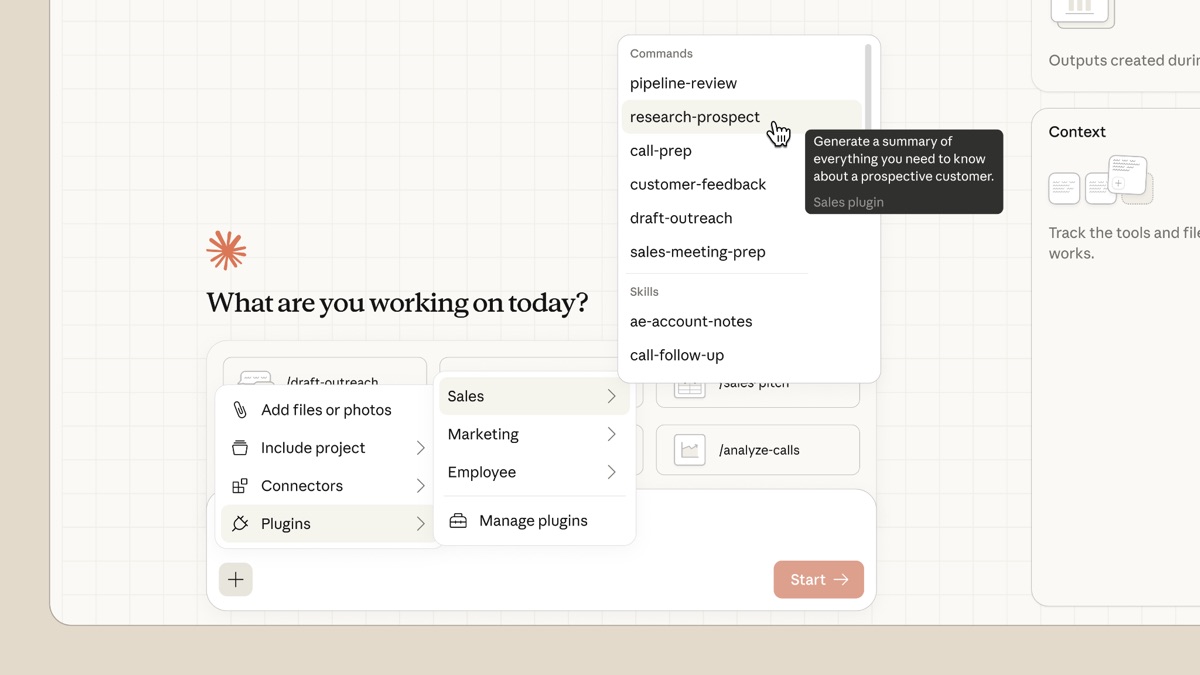
- Plugin ecosystem — Install plugins that bundle skills, connectors, slash commands, and sub-agents for specific roles (Sales, Marketing, HR, etc.)
- MCP connectors — Connect to Slack, Notion, Gmail, GitHub, Google Calendar, and more
When to Use Cowork
- Organizing a messy downloads folder by sorting files by type and date
- Processing a folder of receipts into a formatted expense report
- Researching a topic across multiple web sources and compiling a summary
- Creating multi-file project deliverables (reports, presentations, spreadsheets)
- Managing email drafts, calendar events, or CRM tasks through plugins
- Any multi-step task where you want to hand off work and come back when it’s done
How to Get Started With Cowork
Follow these steps to start using Cowork:
- Download the Claude Desktop app from claude.com/download (requires macOS with Apple Silicon M1+, or Windows)
- Sign in with your Claude Pro, Max, Team, or Enterprise account
- Click the “Cowork” tab at the top of the window, next to Chat and Code
- Select a folder to grant Claude access to — this is the sandbox where it can read and write files
- Describe your task and click “Start”
- Review Claude’s approach, then let it run autonomously
Cowork Plugins
Plugins turn Cowork into a role-specific specialist. Anthropic’s open-source plugin repository includes official plugins for Productivity, Sales, Marketing, and more. Each plugin bundles:
- Skills — Instructions that teach Claude your processes and preferences
- Slash commands — Quick shortcuts for common tasks (e.g.,
/research-prospect,/call-prep) - MCP connectors — Integrations with your tools (CRM, email, project management)
- Sub-agents — Specialized agents that handle parts of a larger workflow
You can customize any plugin by editing its .mcp.json file and skill files to match your company’s specific tools, processes, and terminology.
Limitations of Cowork
- Requires macOS with Apple Silicon (M1 or later) or Windows — not available on the web, mobile, or Intel Macs
- Still in research preview — capabilities may change
- Requires a paid Claude plan (Pro, Max, Team, or Enterprise)
- Cannot write or execute code with the same precision as Claude Code
Claude Code: The Developer’s Coding Agent
What It Does
Claude Code is Anthropic’s AI-powered coding assistant designed specifically for software engineers, DevOps engineers, full-stack developers, and technical leads. It runs directly in your terminal as a CLI tool — or through the Code tab in the Claude Desktop app for a visual interface.
Claude Code understands your entire codebase, makes edits across multiple files, runs terminal commands, manages Git operations, and can even create pull requests. It operates with configurable permission modes that let you control exactly how much autonomy it has.
Key Capabilities
- Full codebase understanding — Reads and navigates your entire project structure
- Multi-file editing — Makes coordinated changes across your codebase
- Terminal command execution — Runs tests, installs packages, manages servers
- Deep Git integration — Commit, branch, merge, and create pull requests
- Visual diff review — Review code changes with inline comments (Desktop app)
- Parallel sessions with Git isolation — Work on multiple tasks simultaneously with automatic Git worktrees
- Extended thinking — Claude reasons through complex problems before writing code
- CLAUDE.md project memory — Persistent configuration files that teach Claude your project’s conventions and architecture
- MCP server integration — Connect to GitHub, Slack, Linear, and custom tools
- Plugin system — Extend capabilities with reusable plugins
- Remote sessions — Run long tasks on Anthropic’s cloud infrastructure via Claude Code on the web
- Agent SDK — Build custom agents powered by the same architecture using the Claude Agent SDK
Permission Modes
Claude Code offers granular control over what it can do on its own:
| Mode | Behavior |
|---|---|
| Ask | Claude asks before every file edit and command. Best for new users. |
| Code | Auto-accepts file edits but asks before running terminal commands. |
| Plan | Analyzes code and creates a plan without modifying anything. Great for complex tasks. |
| Act | Runs without any permission prompts. Only use in sandboxed environments. |
When to Use Claude Code
- Writing new features or components from a description
- Debugging failing tests or tracking down bugs
- Refactoring code across multiple files
- Setting up CI/CD pipelines, Docker configs, or infrastructure
- Code reviews and creating pull requests
- Large refactors or migrations (use remote sessions for long-running tasks)
- Exploring unfamiliar codebases — Claude can read and explain any file
How to Get Started With Claude Code
Option 1: CLI (Terminal)
- Install with
npm install -g @anthropic-ai/claude-code(or use the native installer — no Node.js required) - Navigate to your project directory
- Run
claude— authenticate when prompted - Give Claude a concrete task: “fix the failing test in auth.test.js” or “add a dark mode toggle to the settings page”
Option 2: Desktop App (Code Tab)
- Open the Claude Desktop app and click the Code tab
- Select your project folder and choose a permission mode
- Type your task and press Enter
- Review changes in the visual diff viewer before accepting
Best Practices for Claude Code
- Start with Plan mode for complex tasks — let Claude map out an approach before making changes
- Provide clear, detailed prompts — the more context you give, the fewer corrections needed
- Use CLAUDE.md files to teach Claude your project conventions (coding style, architecture, testing patterns)
- Use sub-agents for research — delegate read-heavy operations to avoid cluttering your main context
- Compact long conversations — type “compact this conversation” to free up context window space
- Leverage Git worktrees for parallel sessions — each session gets its own isolated copy of the project
- Review diffs carefully — even in Code mode, always check what Claude changed before committing
Side-by-Side Comparison: Chat vs. Cowork vs. Code
| Feature | Chat | Cowork | Code |
|---|---|---|---|
| Primary audience | Everyone | Knowledge workers | Software developers |
| Interaction style | Conversational (prompt → response) | Autonomous (hand off a task) | Autonomous (hand off a coding task) |
| Local file access | Upload only | Read, write, create, organize | Full filesystem + terminal |
| Code execution | Sandboxed (for file creation) | Limited | Full terminal access |
| Git integration | No | No | Full (commit, branch, PR) |
| Web browsing | Web search | Full browsing + logged-in sessions | Via MCP connectors |
| Plugins | Skills only | Full plugin system | Full plugin system |
| Remote sessions | No | No | Yes (cloud-hosted) |
| Availability | Web, Desktop, Mobile | Desktop only (macOS/Windows) | CLI, Desktop, VS Code, Web |
| Free plan | Yes (limited usage) | No (paid plans only) | No (paid plans only) |
| Sub-agents | No | Yes | Yes |
Pricing: Which Plans Include What?
All three modes run on the same Claude subscription plans, but availability varies:
| Plan | Price | Chat | Cowork | Code |
|---|---|---|---|---|
| Free | $0 | Yes (limited) | No | No |
| Pro | $20/month | Yes | Yes | Yes |
| Max | $100–$200/month | Yes | Yes | Yes (higher limits) |
| Team | From $25/user/month | Yes | Yes | Premium seats ($150/mo) |
| Enterprise | Custom | Yes | Yes | Yes + admin controls |
The Pro plan at $20/month is the most accessible entry point for all three modes. The Max plan ($100 or $200/month) offers significantly higher usage limits — 5x or 20x more than Pro respectively — which matters for heavy Cowork and Code usage.
Testing and Evaluating Each Mode
Before committing to a workflow, test each mode with these scenarios:
Test Chat With
- Upload a CSV and ask Claude to analyze it and create a chart
- Ask Claude to draft an email based on context you provide
- Request a PowerPoint presentation on a topic — Claude creates a downloadable file
- Connect a service through Connectors and ask Claude to summarize your recent Slack messages
Test Cowork With
- Point it at your Downloads folder and ask it to organize files by type and date
- Give it a folder of invoices and ask for a formatted expense summary in Excel
- Ask it to research a competitor and compile a report with sources, saved as a document in your folder
- Install a plugin (e.g., Productivity) and test its slash commands
Test Claude Code With
- Clone a repo and ask Claude to explain the architecture
- Point it at a failing test and ask it to fix the bug
- Ask it to add a new API endpoint with tests
- Start in Plan mode for a complex refactor — review the plan before executing
- Try a remote session for a large migration or test suite
Best Practices for Choosing the Right Mode
Follow this decision framework to pick the right mode for any task:
- Is it a quick question or creative task? → Use Chat
- Does it involve organizing, researching, or producing documents from files on your computer? → Use Cowork
- Does it involve writing, debugging, or modifying code? → Use Claude Code
- Do you need to automate a repeatable workflow with plugins? → Use Cowork (for knowledge work) or Code (for development workflows)
- Do you want to hand off a task and come back later? → Use Cowork (local) or Code remote sessions (cloud-hosted)
How They Work Together
The three modes are not mutually exclusive — they complement each other:
- Use Chat to brainstorm an approach, then switch to Code to implement it
- Use Code to build a feature, then switch to Chat to write the documentation
- Use Cowork to research competitors, then use Chat to refine the analysis into a presentation
- Use Code’s
/desktopcommand to move a CLI session into the Desktop app for visual diff review
All three modes share the same CLAUDE.md configuration files, MCP server configurations, and settings — so your customizations carry over when switching between them.
What’s Coming Next
Cowork is still in research preview, which means Anthropic is actively expanding its capabilities. Recent additions include plugin support (launched January 30, 2026) and Windows support with full feature parity. Claude Code continues to receive updates through the CLI and Desktop app, with recent additions including remote sessions, agent teams, and the Agent SDK.
The trajectory is clear: Anthropic is building Claude into a unified workspace where everyone — from marketers to software architects — can delegate real work to AI, not just have conversations with it.
Bottom Line
Chat is where you think with Claude. Cowork is where you hand off knowledge work. Code is where you build software together. Understanding the strengths of each mode — and when to switch between them — is the key to getting the most out of Claude in 2026.
Start with the Claude Desktop app to access all three modes in one place, or visit the setup guide to install Claude Code as a standalone CLI tool.
Sources: Anthropic — Introducing Cowork, Claude Code Desktop Documentation, Claude Help Center — Getting Started with Cowork