





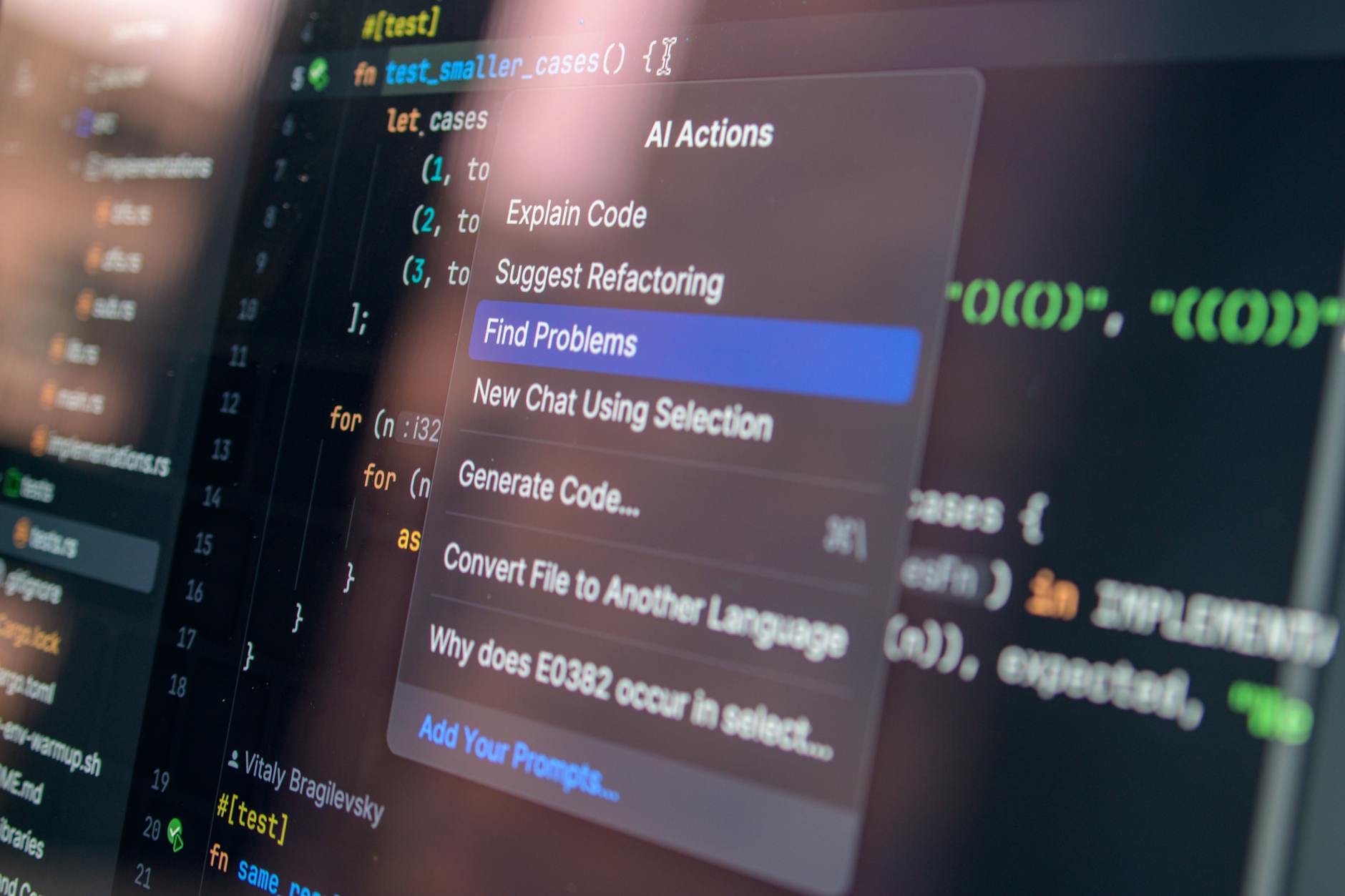
Most people using OpenAI Codex are leaving performance on the table. Not because the model is limited — it isn’t — but because they’ve never touched the settings panel. OpenAI quietly published a detailed settings guide for Codex on April 23, 2026, and it’s more substantial than the typical product documentation you’d gloss over. If you’re using Codex for anything beyond casual one-off queries, understanding what these Codex settings actually control is the difference between a tool that feels generic and one that works like it knows you.
Why Codex Settings Actually Matter
Here’s the thing: AI coding assistants have a configuration problem. Most of them ship with sensible defaults that work fine for a demo but fall apart when you’re deep in a real project with specific conventions, security constraints, and output expectations. GitHub Copilot has faced this criticism for years — it’s smart, but it doesn’t adapt well to your team’s style unless you invest in prompt engineering or custom instructions.
OpenAI has been building Codex differently. Since relaunching it as an agentic coding tool — distinct from the original Codex API that powered early Copilot — the focus has been on giving users genuine control over how the agent behaves. The settings documentation reflects that. It’s not a list of toggles. It’s a framework for shaping how Codex reasons, communicates, and acts on your behalf.
Context matters here too. Codex crossed 4 million weekly users as OpenAI began pushing hard into enterprise accounts. At that scale, a one-size-fits-all configuration simply doesn’t hold. Enterprises need fine-grained control. Solo developers need something that matches their personal workflow. The settings layer is OpenAI’s answer to both.
What the Codex Settings Panel Actually Controls
The documentation breaks configuration into three main areas: personalization, detail level, and permissions. Each one does something meaningfully different, and they interact with each other in ways worth understanding.
Personalization: Teaching Codex Your Preferences
This is where you tell Codex who you are and how you work. That includes your preferred programming languages, coding style conventions (tabs vs. spaces, camelCase vs. snake_case — yes, it matters), and any project-specific context you want it to carry across sessions.
Think of it less like filling out a profile and more like onboarding a new contractor. The more context you provide upfront, the less correction you’ll do later. OpenAI’s documentation emphasizes that personalization settings persist across tasks, so you’re not re-explaining your stack every time you start a new session.
This is also where you can set communication preferences — do you want Codex to explain its reasoning as it works, or just ship the output? Some developers want the commentary. Others find it noise. You can dial that in here.
Detail Level: Controlling Output Verbosity
This setting controls how much Codex elaborates. At higher detail levels, it’ll walk through its logic, flag potential edge cases, and explain why it made certain implementation choices. At lower levels, it produces cleaner, more direct output — less prose, more code.
Neither extreme is universally better. If you’re learning a new framework or doing a code review, high detail is genuinely useful. If you’re generating boilerplate or working fast, it’s friction. The fact that this is configurable rather than fixed is a small but real quality-of-life improvement over tools like GitHub Copilot, which doesn’t offer this kind of verbosity control at the session level.
Permissions: The Most Important Setting You Might Ignore
Permissions are where things get serious. Codex, as an agentic system, can do things — not just suggest them. It can run code, interact with files, make calls to external services, and execute tasks autonomously. The permissions settings determine what it’s allowed to do without asking you first.
This isn’t a trivial configuration choice. Getting permissions wrong in either direction creates problems. Too restrictive, and Codex interrupts constantly, asking for approval on routine operations that slow everything down. Too permissive, and you’re trusting an AI agent to make consequential changes without a checkpoint.
OpenAI’s documentation outlines a tiered approach:
- Read-only mode: Codex can analyze and suggest but won’t execute or modify anything without explicit confirmation.
- Sandboxed execution: Codex can run code in an isolated environment, useful for testing without touching your actual codebase.
- Full agent mode: Codex can take actions end-to-end, including file writes, terminal commands, and integrations — with logging for auditability.
- Custom permission scopes: Enterprise users can define granular rules, like allowing file reads but not writes, or enabling specific integrations while blocking others.
The custom scope option is particularly relevant for teams. If you’re running Codex inside a CI/CD pipeline or as part of a ChatGPT workspace agent setup, you need to know exactly what the agent can touch. Blanket permissions in a production-adjacent environment are how incidents happen.
How These Settings Compare to Competitor Approaches
Let’s be direct about where OpenAI sits relative to the competition on configurability.
GitHub Copilot is deeply integrated into VS Code and JetBrains, but its behavior customization is mostly limited to what you can do through prompt engineering or the relatively recent custom instructions feature. It doesn’t expose a structured permissions model for agentic actions.
Cursor has built a strong following among developers precisely because it lets you configure AI behavior at a granular level — custom rules files, model selection, context window management. It’s arguably ahead of Codex on developer-facing customization today, though it lacks the broader OpenAI platform integration.
Anthropic’s Claude, accessed through various IDEs and platforms, has impressive reasoning but doesn’t yet have a comparable agentic coding product with this kind of settings layer.
What OpenAI has that none of these do is the combination of scale, platform integration, and now a documented configuration framework. That matters for enterprise buyers who need to justify AI tooling choices to security and compliance teams. A well-documented permissions model is a procurement advantage, not just a UX one.
The Memory and Context Angle
One thing the settings documentation touches on — and which connects to broader OpenAI product direction — is how Codex handles memory. Codex recently gained memory capabilities, and the settings panel gives you control over what gets retained, what gets cleared, and how memory interacts with personalization.
This is non-trivial for developers who work across multiple projects with different requirements. You probably don’t want your Python data science preferences bleeding into a TypeScript frontend project. The settings let you scope memory appropriately, either at the session level or tied to specific project contexts.
Who Should Actually Change These Settings
If you’re a solo developer using Codex for occasional tasks, the defaults are probably fine. You might tweak detail level based on what you’re doing, but you’re unlikely to need custom permission scopes.
The settings become genuinely important in three scenarios:
- Teams and enterprises: Standardizing Codex behavior across a team requires explicit configuration. Leaving everyone on defaults means inconsistent output, different permission assumptions, and no audit trail.
- Agentic workflows: If you’re using Codex to run multi-step tasks autonomously — refactoring a codebase, generating test suites, handling PR reviews — permissions and detail level settings directly affect output quality and safety.
- Security-sensitive environments: Any environment where code touches customer data, production infrastructure, or regulated systems needs explicit permission scoping. This isn’t optional.
For teams already using ChatGPT workspace agents for broader automation, Codex settings become one piece of a larger configuration picture. Getting them right early saves a lot of remediation later.
A Note on the Documentation Quality
OpenAI’s technical documentation has historically been hit or miss. The Codex settings guide is one of the better ones — clear structure, practical examples, and specific guidance on the permission tiers rather than vague hand-waving. I wouldn’t be surprised if this gets expanded as Codex adds more capabilities, but as a baseline reference it’s solid. You can also cross-reference it with the broader OpenAI platform documentation for API-level details if you’re building integrations.
The gap between what Codex can do and what most users configure it to do is probably significant right now — and that gap is mostly just documentation awareness. As agentic AI tools push further into real development workflows, the teams that invest time in proper configuration will get meaningfully better results than those who don’t. The settings panel is worth an hour of your time.
Frequently Asked Questions
What are Codex settings and where do I find them?
Codex settings are configuration options within OpenAI’s Codex interface that control personalization, output detail level, and what actions the agent is permitted to take. You can access them through the Codex dashboard or via the official settings documentation for a full breakdown of each option.
Who are Codex settings most relevant for?
Teams and enterprise users get the most value from these settings, particularly the permissions controls and memory scoping. Solo developers on simple tasks can mostly rely on defaults, though adjusting detail level is useful depending on whether you want explanatory output or clean code.
How do Codex permissions settings differ from basic Copilot configuration?
GitHub Copilot doesn’t expose a structured permissions model for agentic actions — it’s primarily a suggestion engine. Codex settings include tiered permissions for agentic execution (read-only, sandboxed, full agent mode), which matters when Codex is running tasks autonomously rather than just generating suggestions.
Do Codex settings sync across sessions and projects?
Personalization settings persist across sessions by default, but you can scope memory and preferences to specific projects to prevent cross-contamination between different codebases or team contexts. The documentation covers how to manage this, and it’s particularly relevant for developers working across multiple clients or tech stacks.